
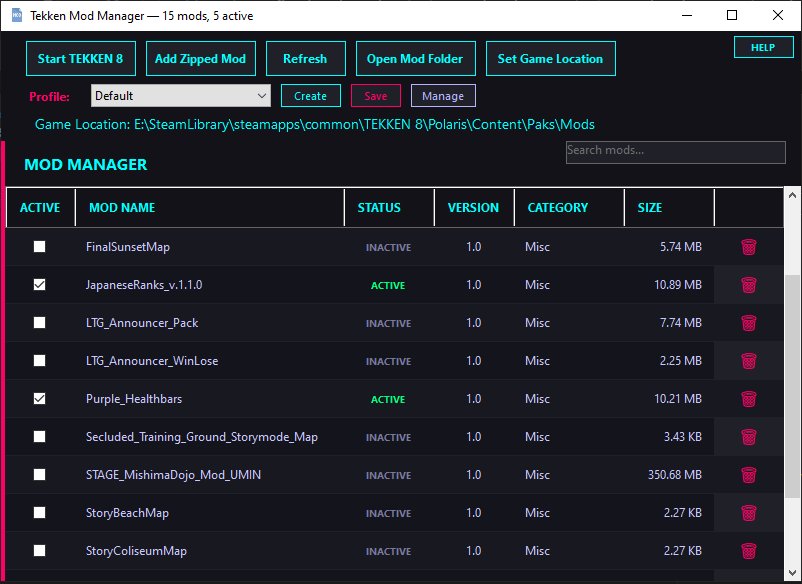
TEKKEN 8 Mod Manager
Install, switch on and off, and organise your TEKKEN 8 mods without touching a single file name.
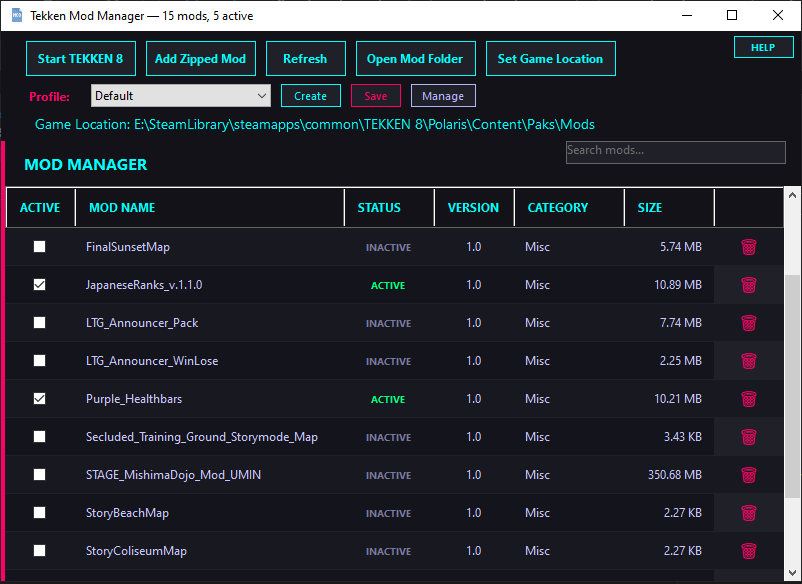
In 30 seconds: download one zip, unzip it anywhere, run ModManager.exe, point it at your TEKKEN 8 Paks folder. Every mod gets an ACTIVE checkbox. Free, no installer, no admin rights, open source (GitHub).
Download
Pick one of the two builds, extract it anywhere and run ModManager.exe.
New in 1.1.1: fixes the "executable not found" error on Start TEKKEN 8, makes conflict warnings see nested paks, makes enabling or disabling a mod all-or-none, and asks before every delete. Back up your mods before you update, and report anything that misbehaves, here or on GitHub.
Recommended: self-contained (63 MB, needs nothing)
TekkenModManager-1.1.1-win-x64-selfcontained.zip
Smaller: framework-dependent (1 MB, needs the .NET 8 Desktop Runtime (x64))
TekkenModManager-1.1.1-win-x64-framework-dependent.zip
Windows says "Windows protected your PC"? The exe is not code-signed, so SmartScreen warns about every new unsigned download. Click More info, then Run anyway. You can check what you downloaded: the SHA-256 of each zip is listed under "Verify your download" further down, and the complete source code is on GitHub, so you can read it or build it yourself.
Why you'll like it
One-click on/off, no manual file renaming Tick ACTIVE to enable, untick to disable. The app renames the mod's files in place (pak / ucas / utoc), so you never dig through folders. Nothing is deleted when you toggle, and it is fully reversible.
All three mod folders in one list
Mods, ~mods and LogicMods (UE4SS script mods) show up together, with a TYPE column that says which folder each mod lives in.
Install straight from ZIP, RAR or 7Z Click Add Zipped Mod or drop the archive onto the window. The manager looks inside the archive, suggests the right folder, and lets you confirm it.
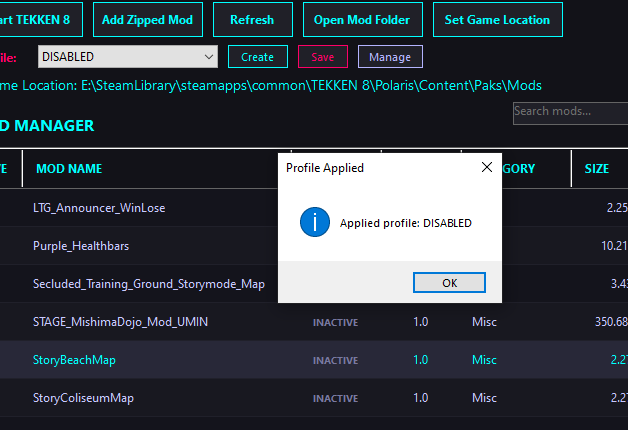
Profiles: swap whole loadouts in seconds Keep a "tournament-legal" set, a "fun/chaos" set and a "photo-mode" set side by side, and switch between them in one click.
Conflict warnings that actually warn you
If two active mods ship the same .pak file, they fight over the same slot. The manager flags them in orange, shows a banner with the count, and asks before it launches the game.
Metadata, rename, search
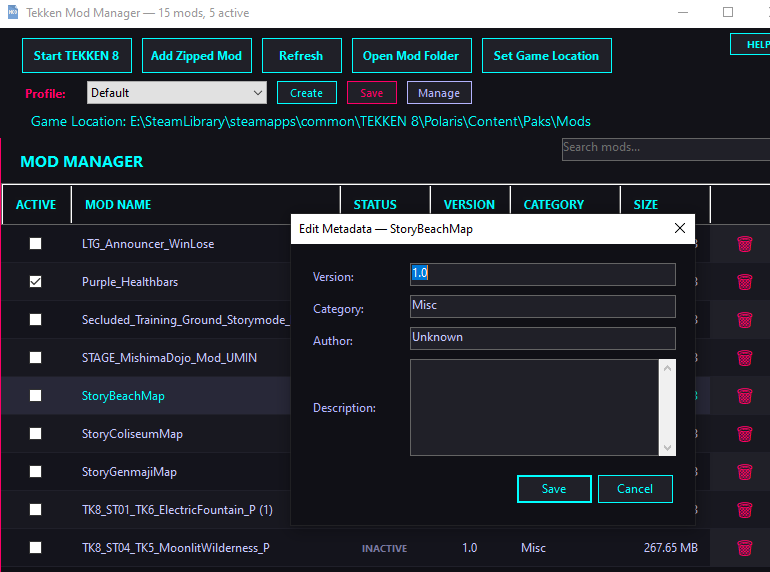
Give each mod a version, category, author and description (right-click, or double-click). Rename a mod's folder with F2. Search the list by name, category, author or type.
Live folder watching Add, remove or rename a mod folder in Windows Explorer and the list updates by itself.
Getting started
- Set your game location. Click Set Game Location (
Ctrl+G) and pick your TEKKEN 8Paksfolder, typicallyTEKKEN 8 \ Polaris \ Content \ Paks. TheMods,~modsandLogicModsfolders inside it are used automatically. - Add a mod. Click Add Zipped Mod (
Ctrl+N) or drag a ZIP / RAR / 7Z onto the window, then confirm the folder. - Switch it on. Tick ACTIVE. The STATUS column reads ACTIVE or INACTIVE.
Keyboard shortcuts
F1 help · F2 rename the selected mod · F5 refresh · Ctrl+G set game location · Ctrl+O open the mod folder · Ctrl+N add a mod · Esc close dialogs
What it touches on your PC
So there are no surprises:
- Pak mods (Mods, ~mods): it appends
-xto the mod's.pak,.ucas,.utoc,.sigand.txtfiles to disable it, and removes the-xto enable it. - Logic mods (LogicMods): it renames the mod's folder with a
.disabled_prefix to disable it; the files inside are not touched. - Metadata: a small
modinfo.jsoninside the mod's own folder. - Profiles:
%LOCALAPPDATA%\TekkenModManager\profiles.json. - Deleting: the trash button and the right-click Delete Mod remove the mod's folder permanently, after a confirmation; it does not go to the Recycle Bin.
- It only looks at the three folders under
Paks. Anything else, including loose files elsewhere in the game folder, is not managed.
To uninstall, delete the folder you extracted it to (and %LOCALAPPDATA%\TekkenModManager if you want to remove your profiles). Your mods stay where they are.
FAQ
I already have mods installed but no longer have the ZIPs. Do I have to download them again?
No. Create one folder per mod inside Mods (or ~mods, LogicMods) and copy each mod's full contents into its own folder. The manager works per folder. If you mix files from different mods in one folder, it treats them as a single mod.
Will it delete or break my existing mods? No. Enabling and disabling only renames files and can be undone. The only things that delete are the trash button and the right-click Delete Mod; both ask first, and a delete is permanent.
I disabled a mod but it still seems active in the game. What should I check?
1. Its STATUS must read INACTIVE after you untick it.
2. Is there an orange conflict banner? Another active mod may ship the same file.
3. Close the game completely before toggling mods. The game reads its mods when it starts.
4. Is a second copy of the mod lying loose in Paks, outside the three folders? The manager does not see those.
If it still happens, write the mod's name and which folder it is in as a comment and I will look at it.
"TEKKEN 8 executable not found" when I press Start TEKKEN 8. Fixed in 1.1.1. On 1.1.0-experimental the button looks for the game one folder too high; start the game from Steam instead, or update.
Can I set which mod wins when two overlap? Not yet. The manager only warns about overlaps. It has been requested.
Can it manage mods that live outside Paks (for example movie or stage-select replacements under Content\Movies)?
Not yet. It manages Mods, ~mods and LogicMods only. It has been requested.
Can I still install mods by hand? Yes. Manual folders and archive installs live side by side. Drop a folder in yourself or use Add Zipped Mod.
The app will not open. If you took the small framework-dependent build, install the .NET 8 Desktop Runtime (x64) from the link above. The self-contained build needs nothing.
Where do I report a bug or ask for a feature?
Here in the comments, or as an issue on GitHub. Please say which version you use (
F1 shows it) and which game location you set.
Verify your download
SHA-256 of the 1.1.1 zips:
Self-contained: 9c652be019ef663fcda9347cf99bf04710396fb27bee789af50b4de5dd631a74
Framework-dependent: dd79759a4fa2074179503e683c0ec82fba25b77781f93690fe17db8ae79c9922
In PowerShell: Get-FileHash <file> -Algorithm SHA256.
Versions
- 1.0.0: Initial release
- 1.0.1: Fix "Directory does not exist to extract to" when adding .rar/.7z mods
- 1.0.2: Fix mods that stay inactive and cannot be toggled when their .pak/.ucas/.utoc files live in a nested subfolder (e.g. Content/Paks)
- 1.0.3: Rename a mod's folder from the list (right-click > Rename, or F2); profile references update automatically
- 1.1.0-experimental: All three mod folders (Mods, ~mods, LogicMods) in one list with a TYPE column; auto-detect the target folder when adding a mod; logic (UE4SS script) mods enable and disable via folder renaming; real-time folder watching; existing setups migrate automatically
- 1.1.1: Fix "TEKKEN 8 executable not found" on Start TEKKEN 8; ask before every delete (also the right-click one); enabling or disabling a mod is all-or-none, so a locked file cannot leave it half-switched; conflict warnings also compare paks in nested folders; the installer's scratch folder no longer shows up as a mod; faster refresh. No longer marked experimental
Full history: CHANGELOG.
Requirements
Windows and TEKKEN 8 (PC).
Disclaimer
A free community tool, not affiliated with Bandai Namco. Use mods at your own risk. MIT licensed, source on GitHub.